
Search for tenders
Keyword, sector, region, buyer, amount: how to go from every notice in the country to the ten that matter to you.
The Tenders page gathers everything published in the country: notices from ministries and state companies, contracts financed by donors (World Bank, African Development Bank, United Nations agencies) and requests from private companies. 34 are open right now. Nobody reads all of that: the job is to narrow the list to what concerns you, then open the right pages.
The Tenders page
It opens from the first entry of the menu. Three areas: the search bar, the filters, the list.
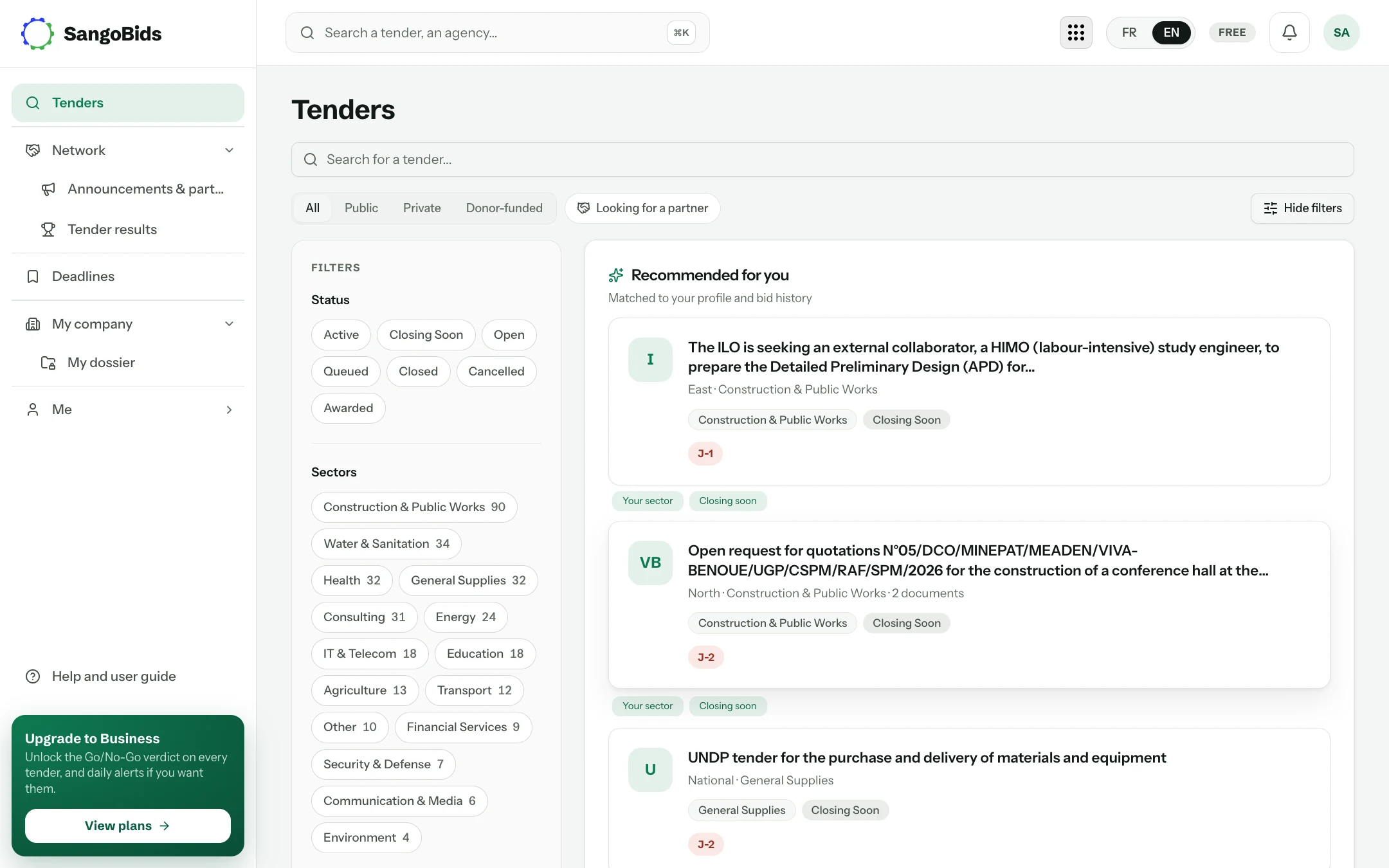
Computer
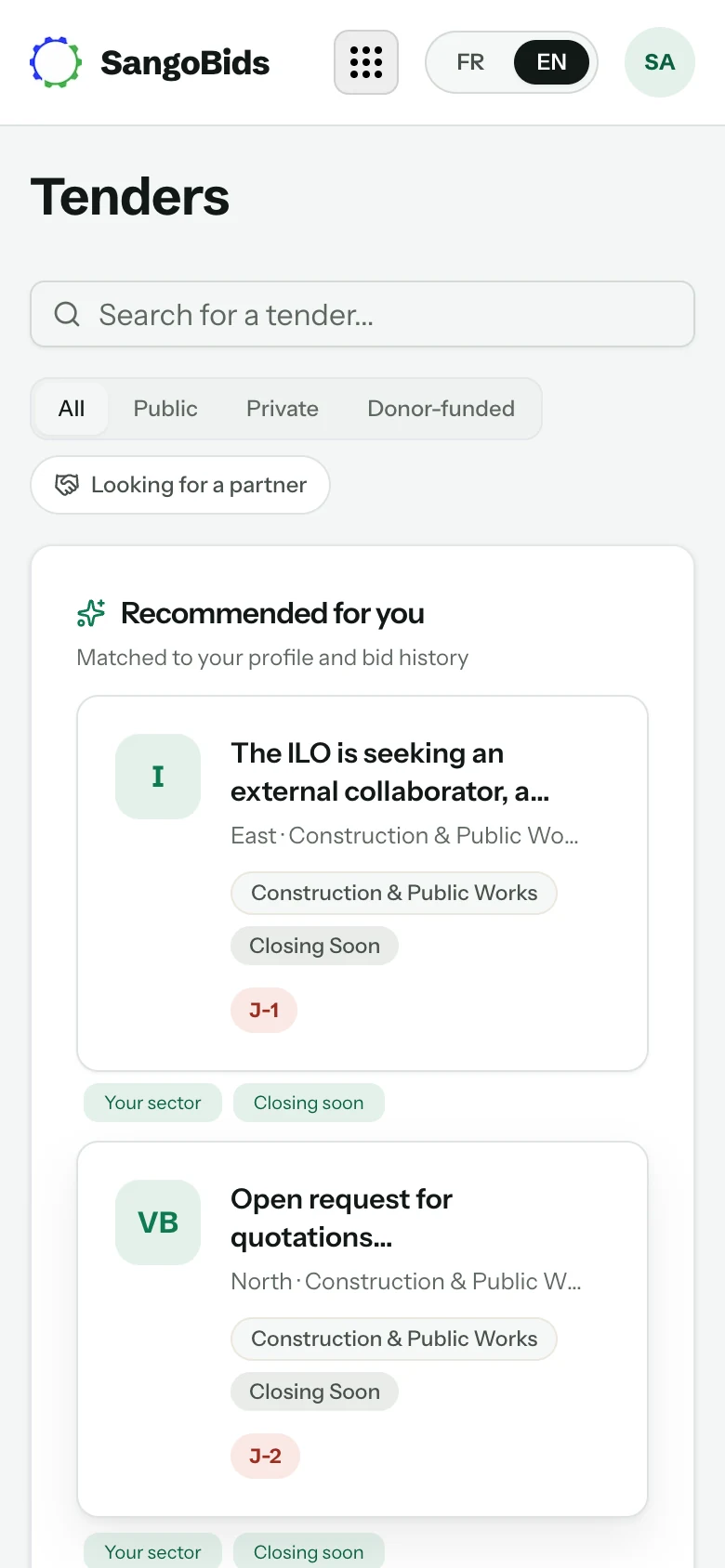
Phone
The search bar
It searches the title, the reference and the buyer's name. Accents and capitals do not matter.
The filters
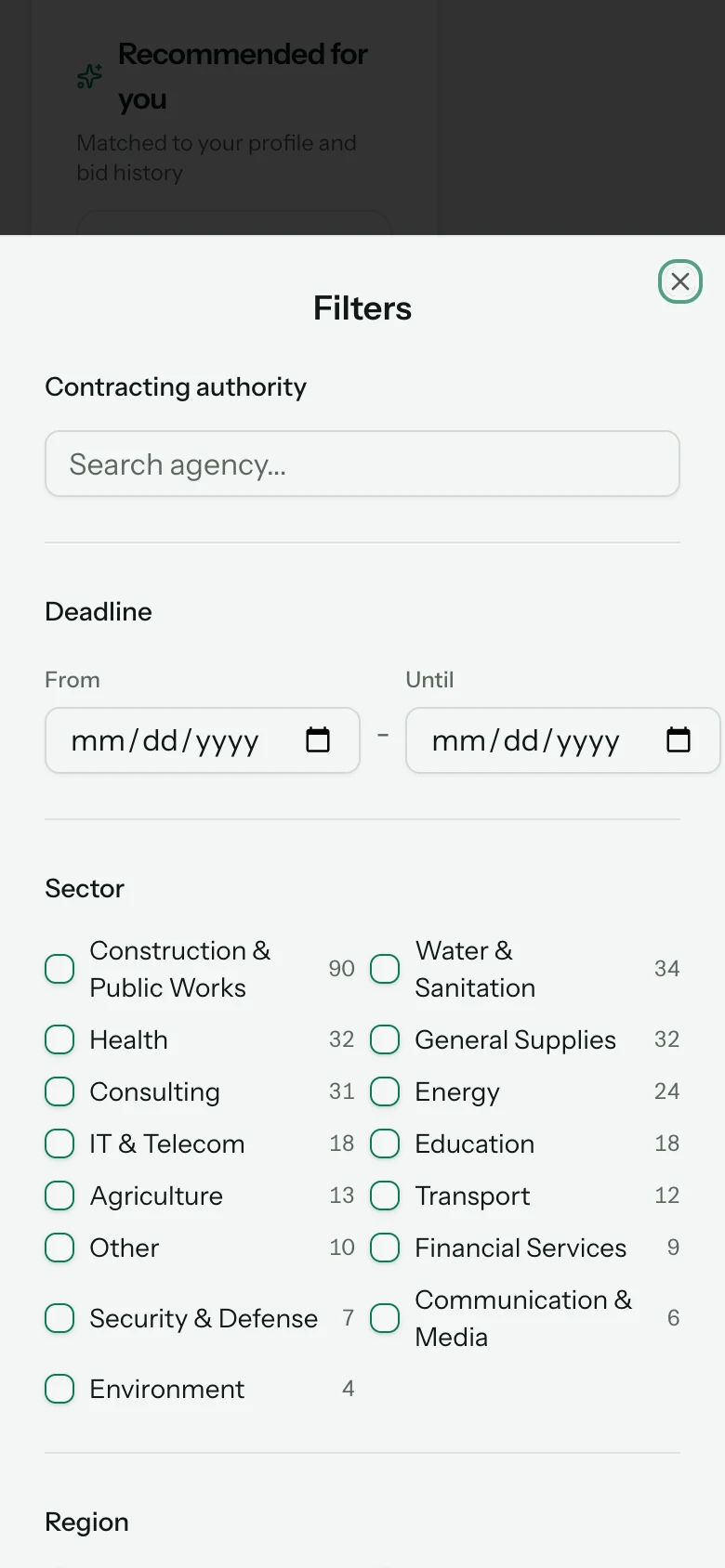
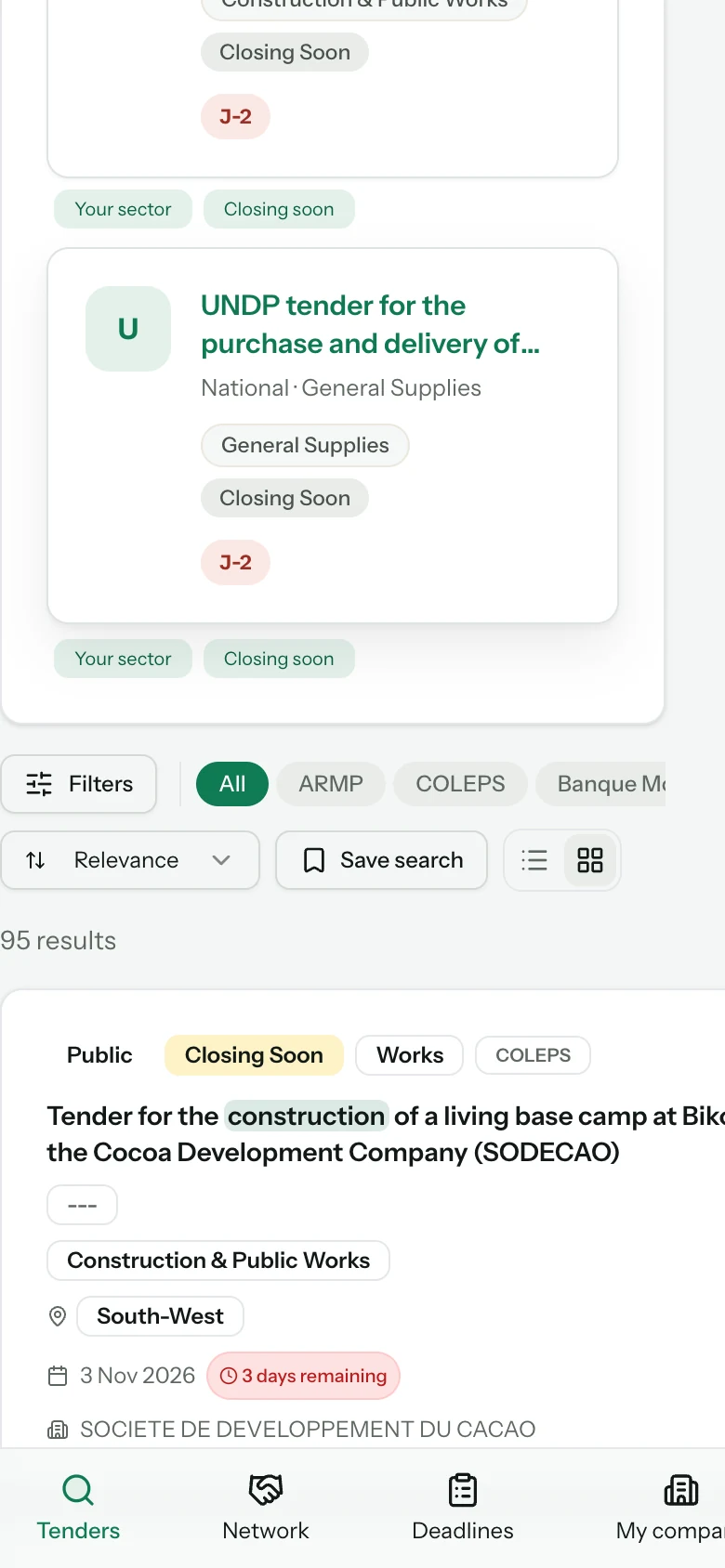
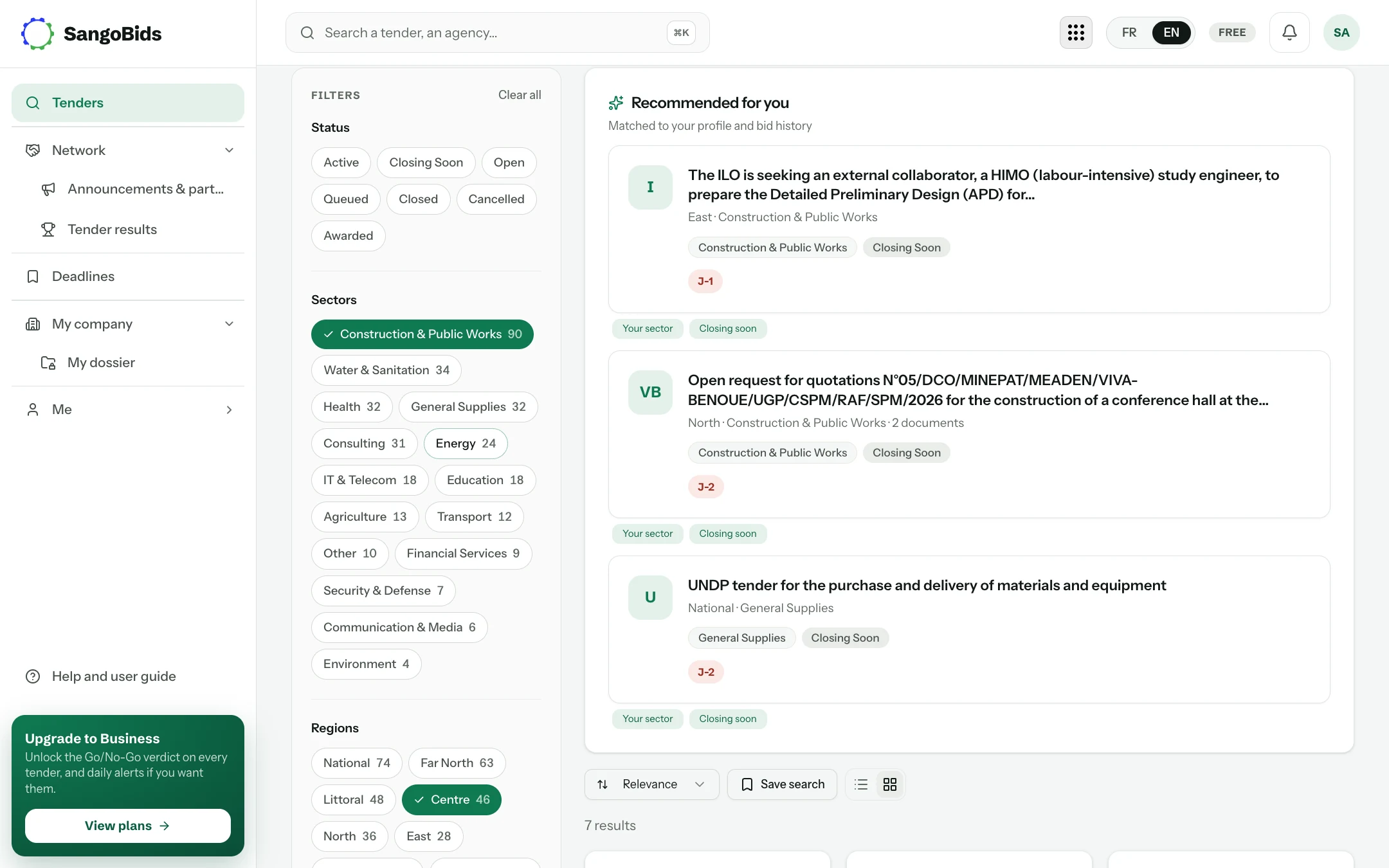
On a computer, a panel to the left of the list, hidden or shown by the button at the top right. On a phone, the Filters button opens the same panel full screen.
Above the list, four tabs separate the sources: All, Public (ministries and state companies), Private (companies consulting suppliers on SangoBids) and Donors. The Looking for a partner button next to them shows only the notices for which a company is looking for a subcontractor or a consortium partner. On a phone, chips per publishing source (ARMP, COLEPS, donors…) and a sort menu (relevance, newest, deadline, amount) play the same role.
Search by keyword
Type a word from the trade, not an administrative one: "borehole", "air conditioning", "school furniture", "audit". The number of results shows at the top of the list.
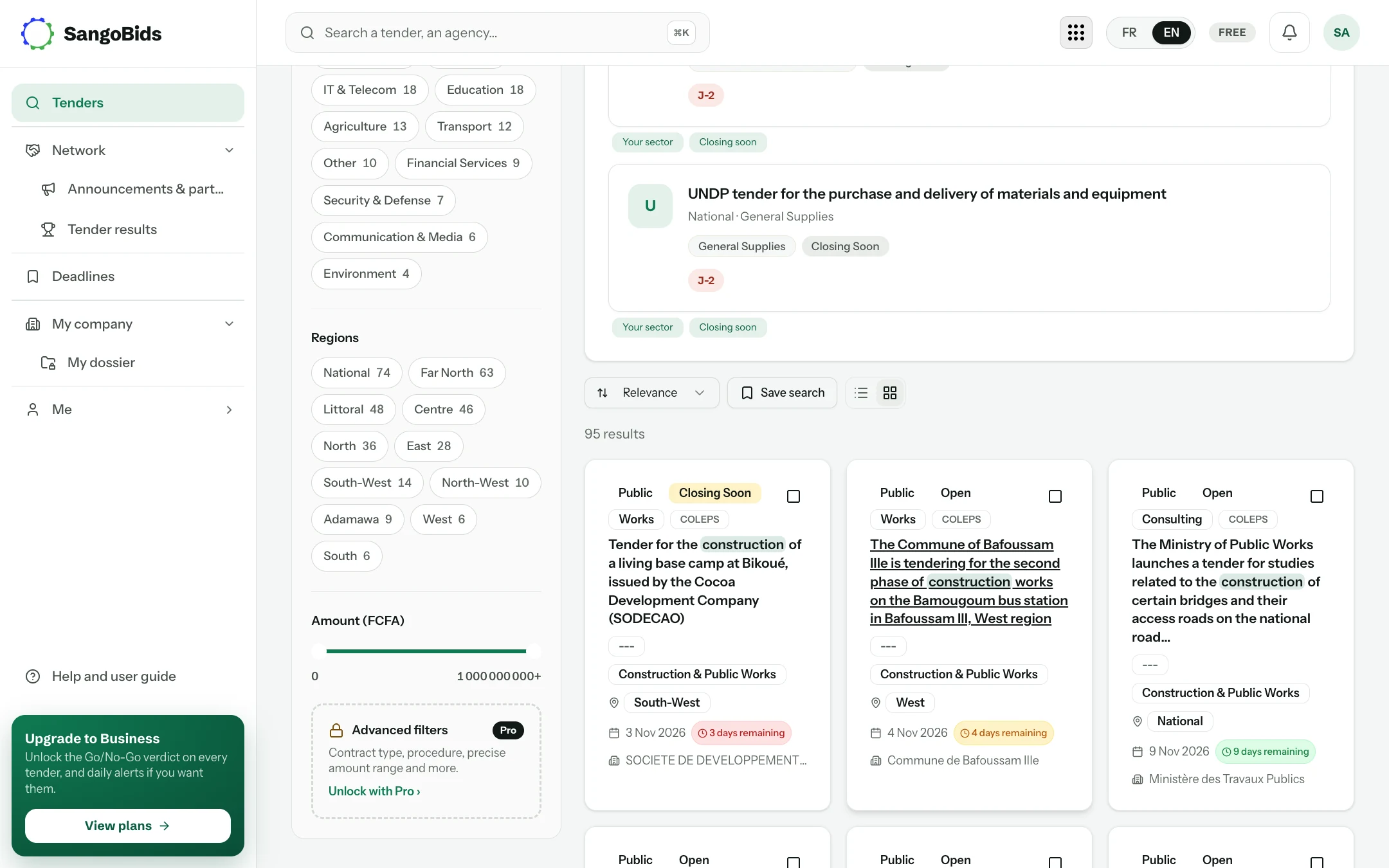
Computer
Narrow with the filters
Filters add up. The number next to each sector says how many open notices it holds: it is also a quick reading of what the country is buying right now.
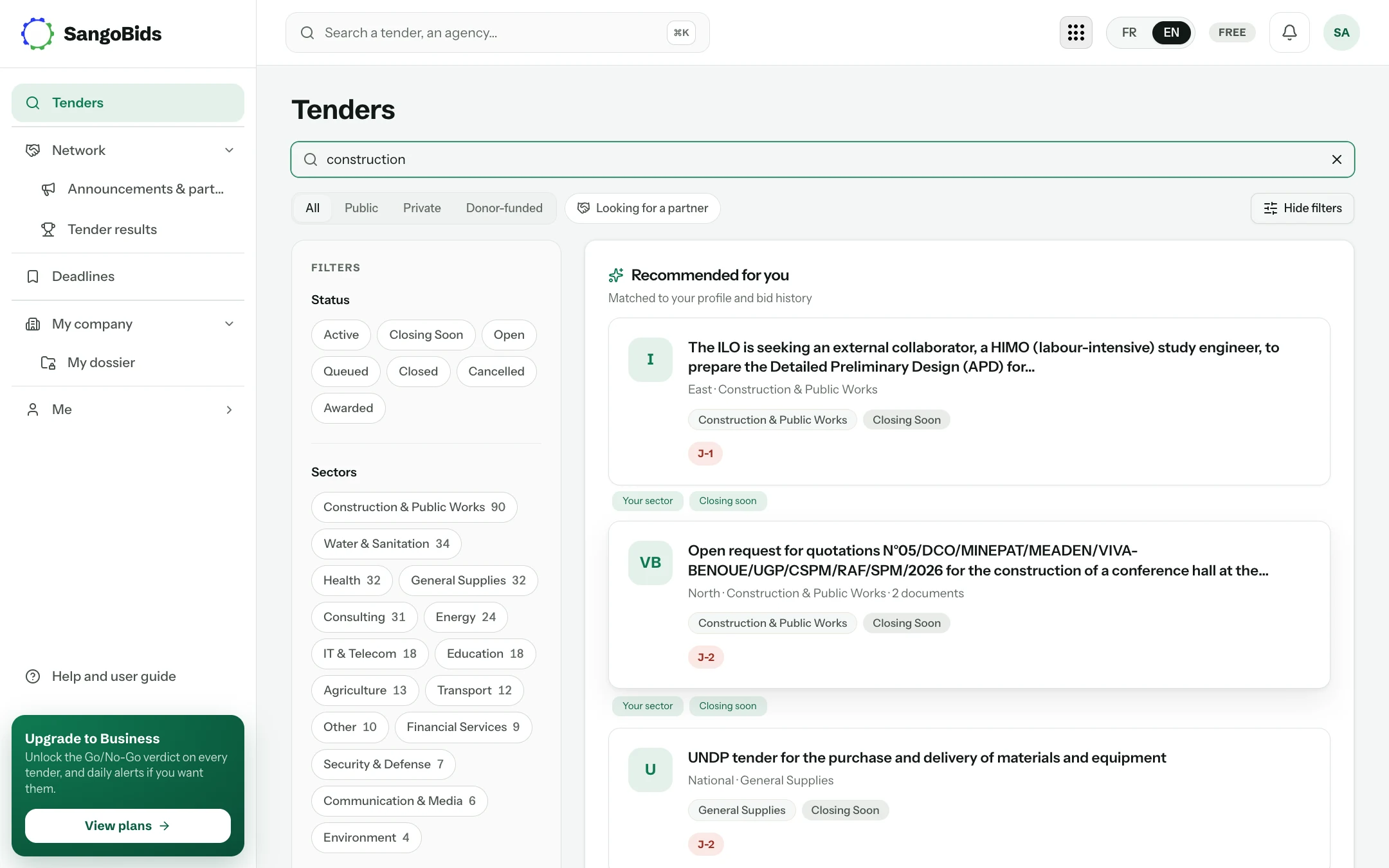
Computer
Phone
Phone
- Status: keep Active to see only what can still be submitted. Closing soon isolates the notices that close in the next few days; Awarded is for studying who won what.
- Sectors and regions: the same as in your profile. For notices open to the whole country, remember to include “National” among the regions.
- Buyer: type the first letters of a ministry, a town hall or a state company.
- Amount: useful to set aside what exceeds your capacity, or to keep only the small contracts where competition is lighter.
- Deadline: "Until" a date, to see only what you can prepare in time.
Computer
Read a card
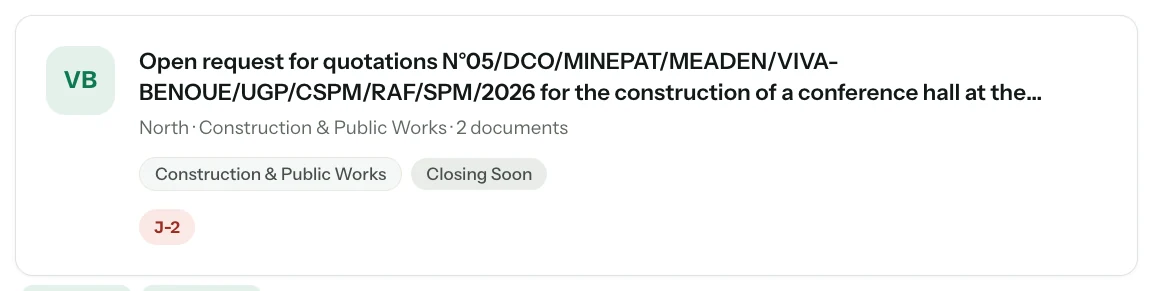
Each result fits in one card, designed for sorting without opening.
Computer
- The countdown (D-2, D-15…) is the number of days before the submission deadline. Red when less than a week is left.
- "2 documents" means the dossier is attached to the notice: you can read the criteria before travelling. Without it, the dossier is collected from the buyer.
- The amount, when published, is the buyer's estimate. Many notices do not give one.
- The tags "Your sector" and "Closing soon" explain why the notice moved up the list.
Open the tender page
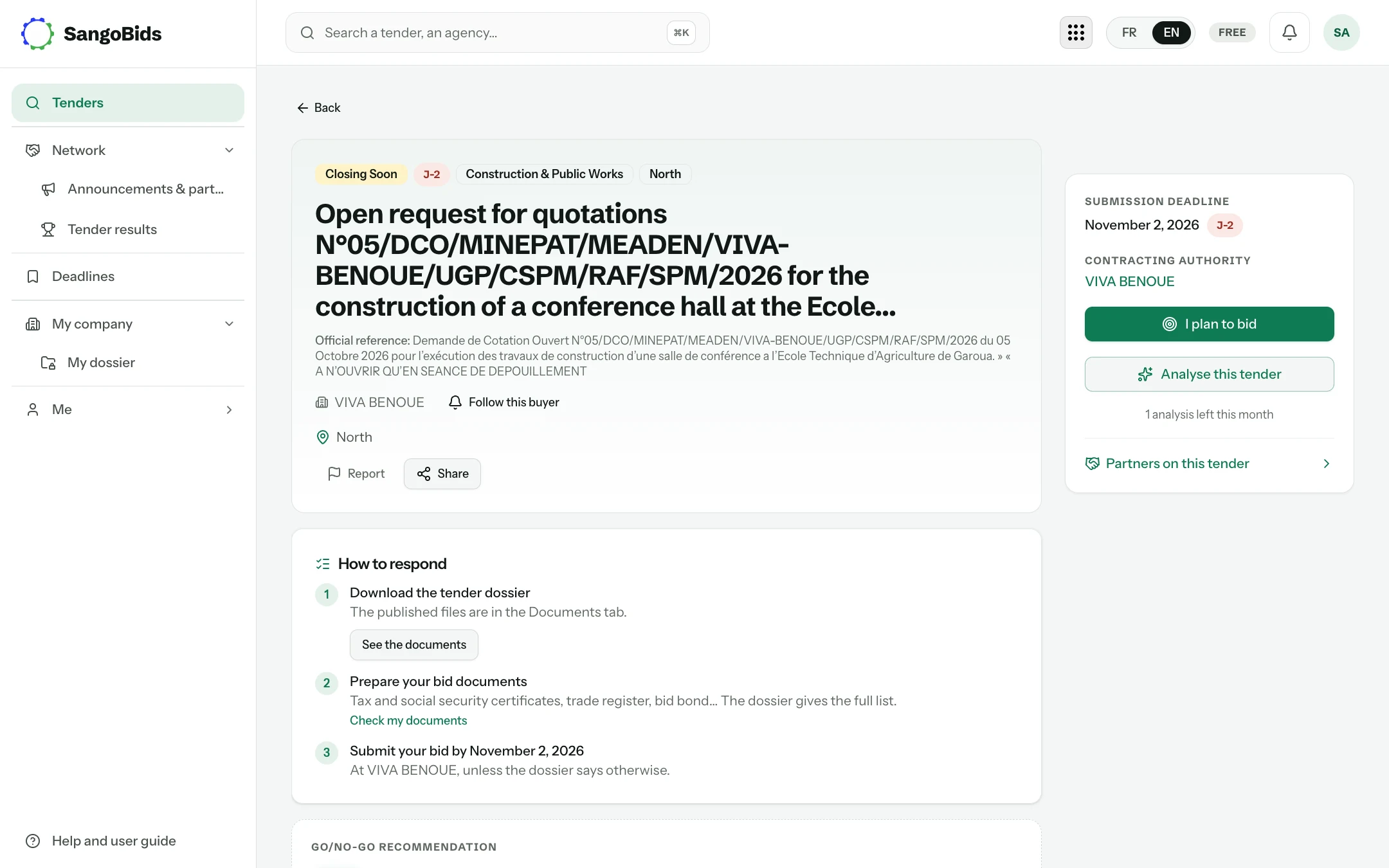
Computer
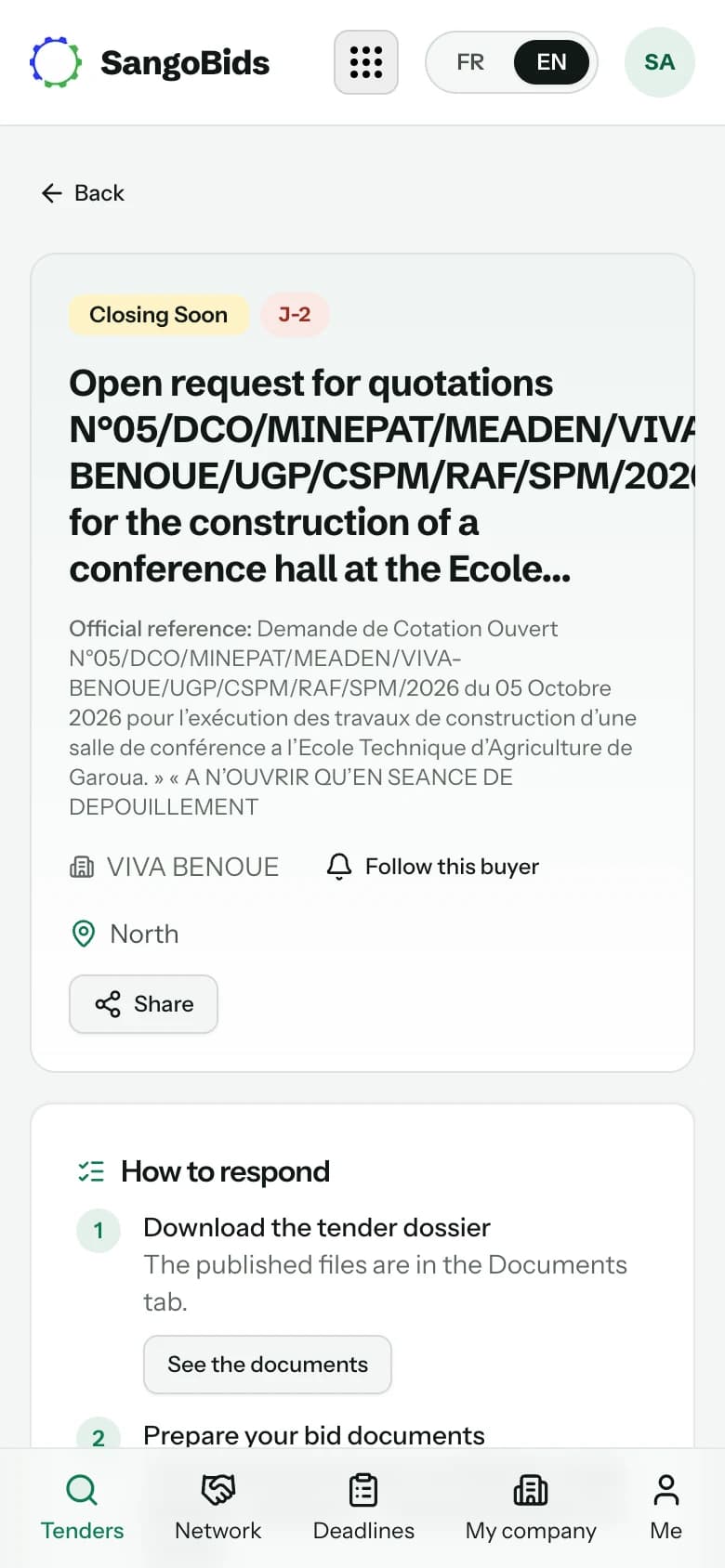
Phone
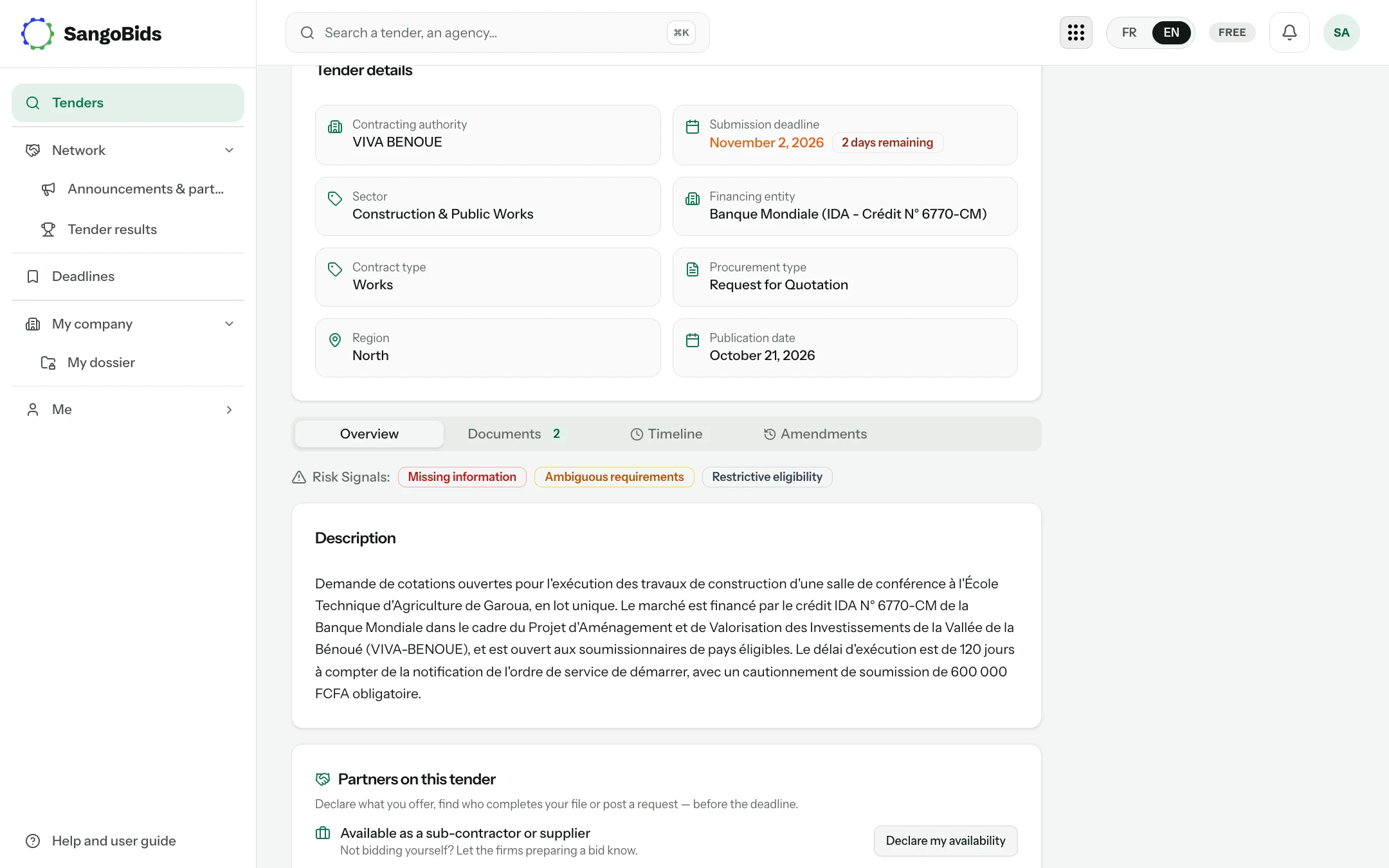
Computer
Two buttons worth knowing on the page: Follow this buyer (under the title) alerts you at every new notice from that authority; I intend to bid (right-hand column) adds the notice to your Deadlines with its reminders.
Save the search
When a combination of filters suits you, the Save search button, next to the result counter, keeps it under a name. It runs again in one click from Me, then Saved searches, and can become an alert: you then receive every new matching notice, by e-mail or notification, without coming back to the page.
What next
The list is short and a page is open: what remains is deciding whether it deserves an offer. That is what the Go/No-Go verdict does.
Read next
Ready to try?
The account is free and public tenders stay free. Three minutes is enough to receive the first ones.
Get started free